
LIVE PRODUCTION & PRESENTATION TOOLS
POWERFUL TOOLS TO HELP TELL YOUR STORY
Our intuitive suite of powerful live production, presentation, and content tools is perfect for Concerts, Trade Shows, Corporate Events, Fixed Installations, Churches, Sporting Events, and more.



Present Like a Pro
The comprehensive, indispensable application for every live production, including worship environments, corporate events, and live broadcasts.
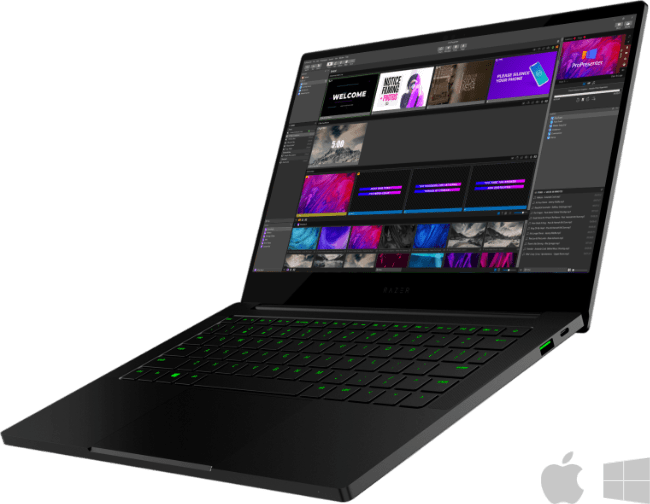
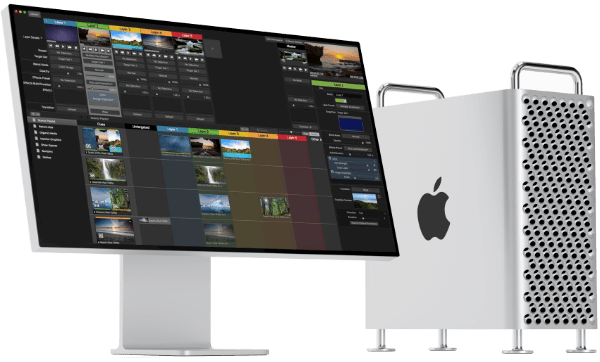
A Powerful Tool for
Every Production
All-in-one media server and screen control software with mapping, effects, and extensibility with an advanced video processing engine.
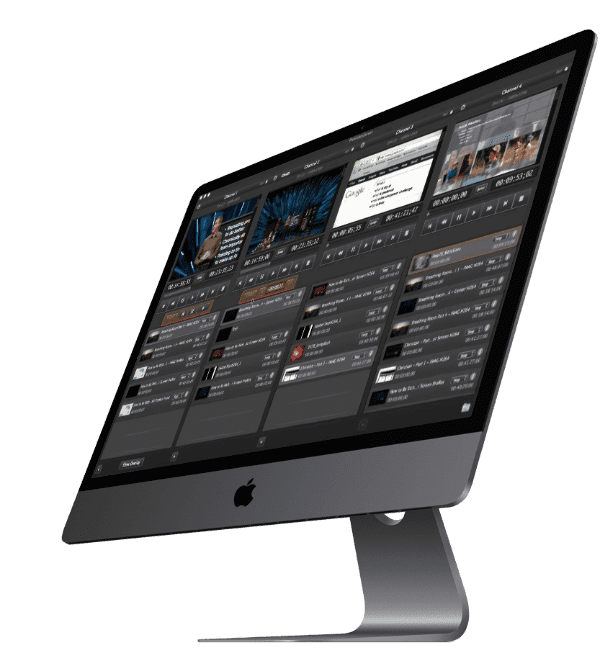
Playout Video Content
With Reliability
Multi-channel broadcast video ingest and playout server with synchronized record and playback, and industry standard protocol controls.
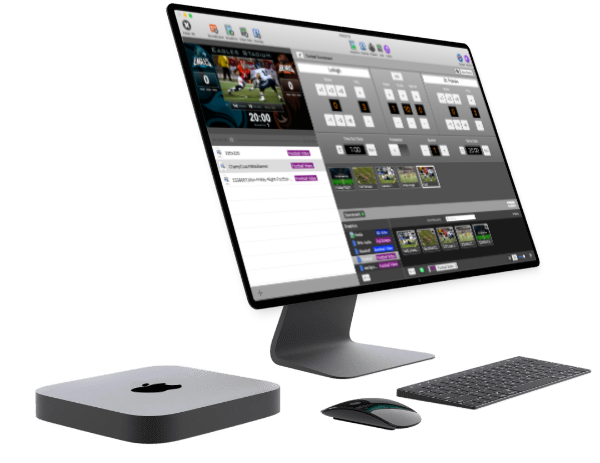
Get the Home Field Advantage
Multi-sport score and advertising presentation system for video-based scoreboards and sports broadcasting.
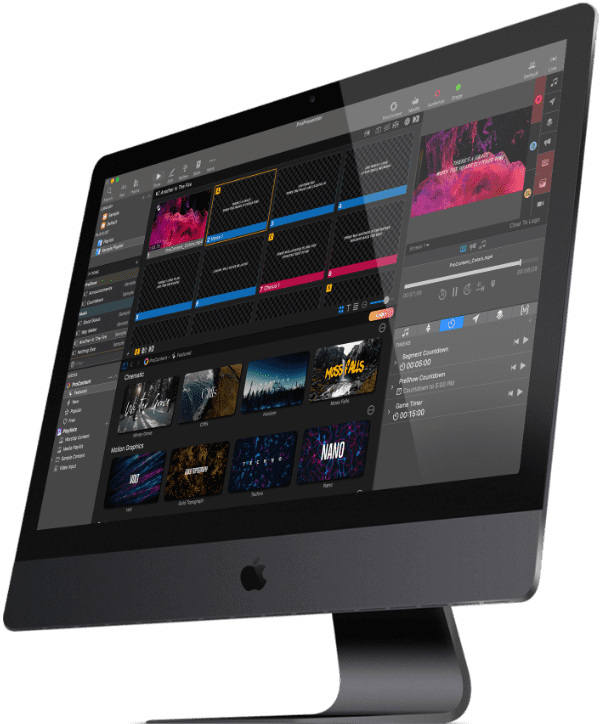
The Ultimate Media Library
With over 50,000 assets available, ProContent is perfect for worship visuals, sermon series, and social media templates.
Testimonials
We love happy customers
Don’t take our word for it, hear what some of the largest, most influential customers in the world have to say…























Worship Software

Live Production

Education

Government

Broadcast

Live Sports

eSports
House of Worship



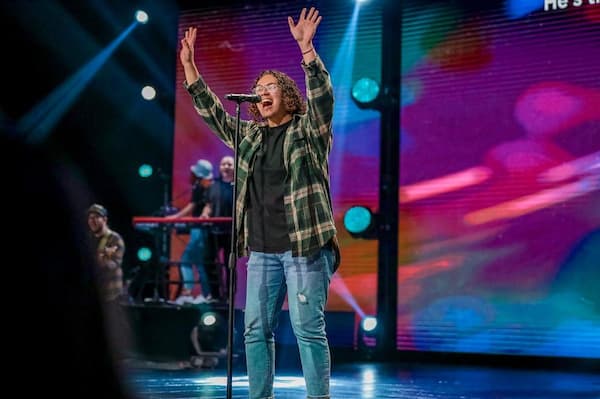
ProPresenter was first built for houses of worship, offering worship-centric features like rich, dynamic visuals and automatic lyric and copyright integration plus access to 125 Bible translations. ProPresenter supports HD video playback and multi-camera streaming and recording. It’s an all-in-one solution for your visual needs, no matter how complex your facilities or presentations get.
Live Production
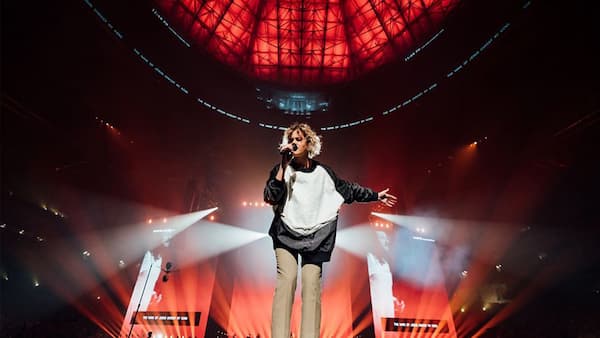
ProPresenter takes live production visuals to the next level. Enjoy an advanced professional-grade slide editor with support for 8 layers of content—including seamless video playback within your presentation. Set up multiple stage displays, lobby feeds, overflow rooms, and even a specific separate feed for online events.
Education
Increase student engagement and enjoy better stability in your presentations. Replace your office-oriented solution with one that can easily import audio and video content into presentations. With ProPresenter, your presentation will look great in the classroom, the auditorium, and on your students' devices.

Government

ProPresenter is helping government bodies improve the quality of their visual presentations at local assemblies all the way up to the meeting rooms of U.S. Congress and office of the U.S. President. Enjoy broad support for nearly any display type or video or audio format, plus an easy-to-learn interface that allows anyone on your team to produce beautiful visuals without steep learning curves.
Broadcast
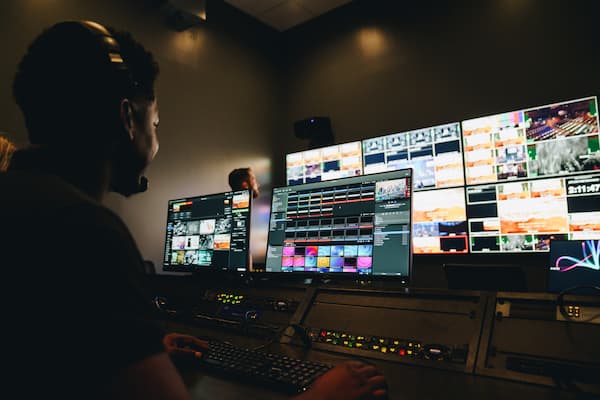
Enjoy broadcasting software with industry-standard protocol controls familiar to professional broadcasters and engineers. Perform video mixing and screen control using ProVideoPlayer and output over professional video and audio formats like SDI, NDI, and Syphon. Leverage our solutions for legacy live broadcasting or in combination with live streaming over your preferred video streaming platform.
Live Sports
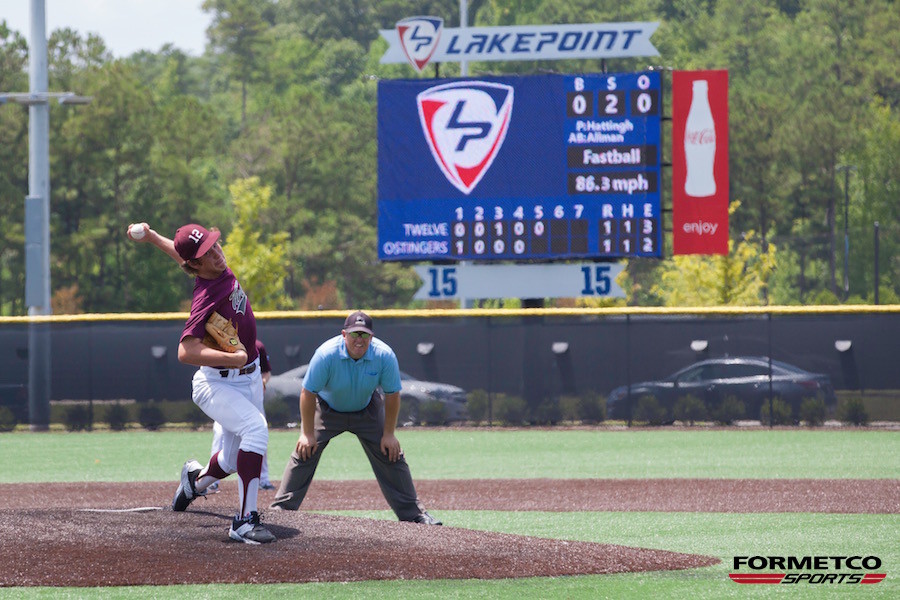

ProPresenter Scoreboard is the perfect solution for powering dynamic visual scoreboard content. Designed for live sporting events, the Pro suite of apps includes real-time stats, live video, lower thirds, watermarks/bugs, and more. That's why you’ll find the Pro Suite in various athletic facilities, from high schools to universities, to every Olympics in the last ten years.
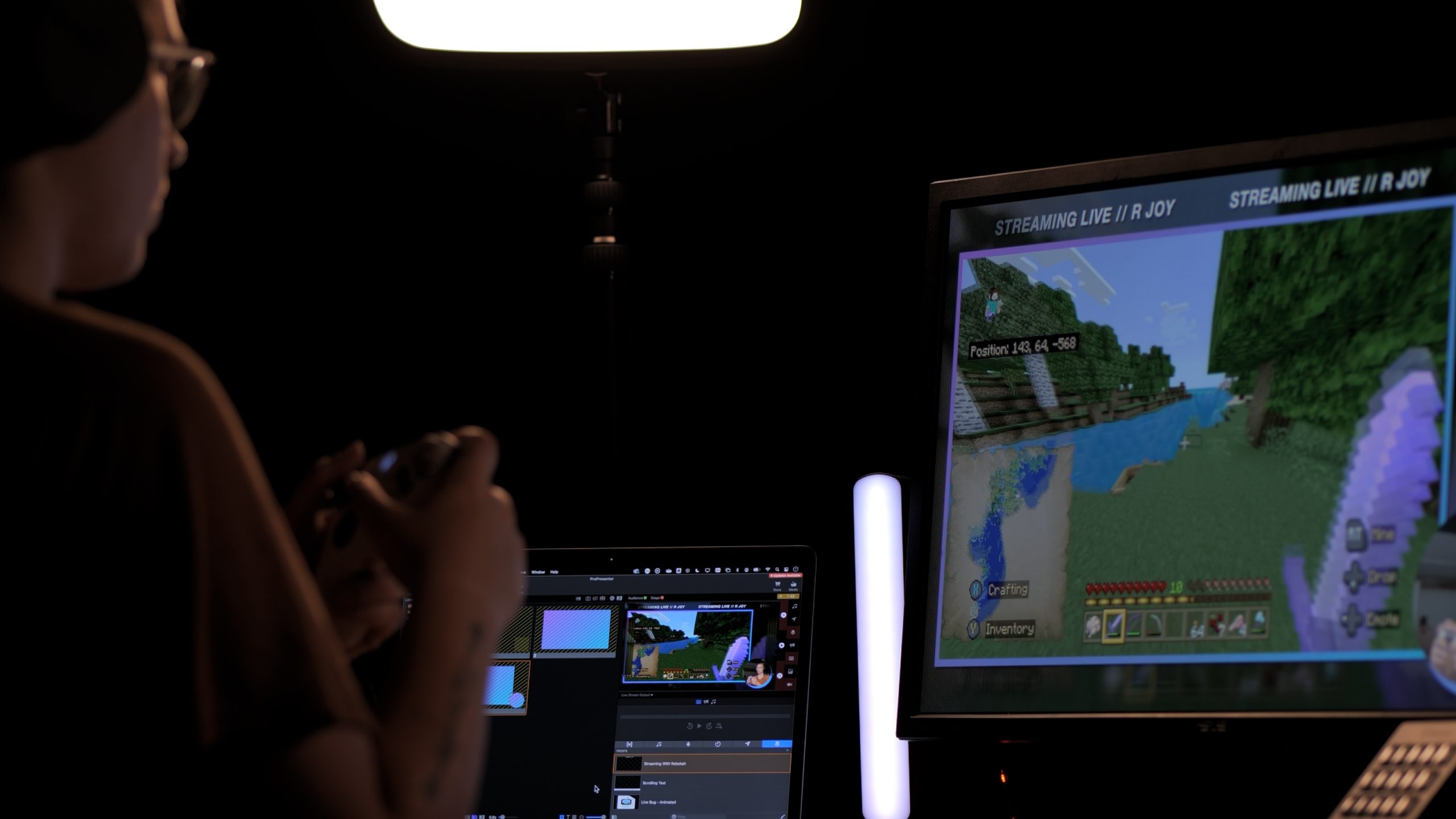
Esports and Video Game Live Streaming Software
ProPresenter is designed for editing content, displaying that content across any number of screens in-person at eSports events and conferences, and for individuals streaming at home or on the go.
Let’s talk benefits
Our software design process is driven by a set of core principles derived from years in the field. We are live event people and we write software for live event people. We focus on:
Key
Benefits
Stability
Ease of Use
Value
Extensive QA
Best in Breed Feature Set
Innovation and R&D
World-Class Support
Usability at its finest
Our products are designed for some of the most demanding live event productions. With this in mind we develop software to maintain stability and ease of use for volunteers and staff without sacrificing advanced features.
Free Trial
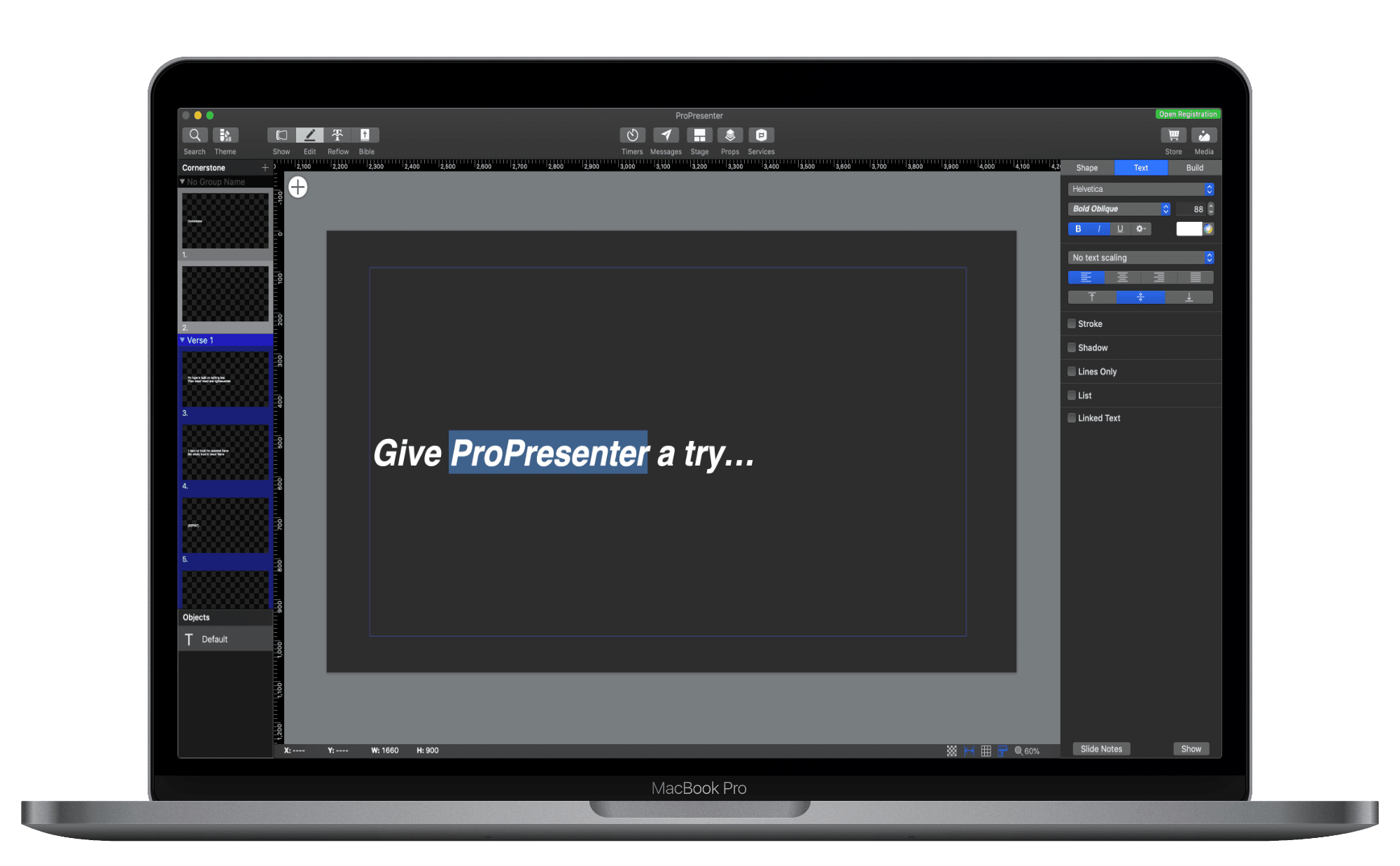
Try our products for free
You can have confidence in your purchase. All of our software offers a fully functional free trial along with free tutorials and customer support even before you buy. What do you have to lose?




Stay in the spotlight
We're always highlighting new features, upgrades, and even our awesome clients. Stay up-to-date with us and join our newsletter.
Questions?
Our skilled support team is always here to help.
Shoot us a note and we'll respond within 24 hours.
Stay in the spotlight.
We're always highlighting new features, upgrades, and even our awesome clients. Stay up-to-date with us and join our newsletter.