

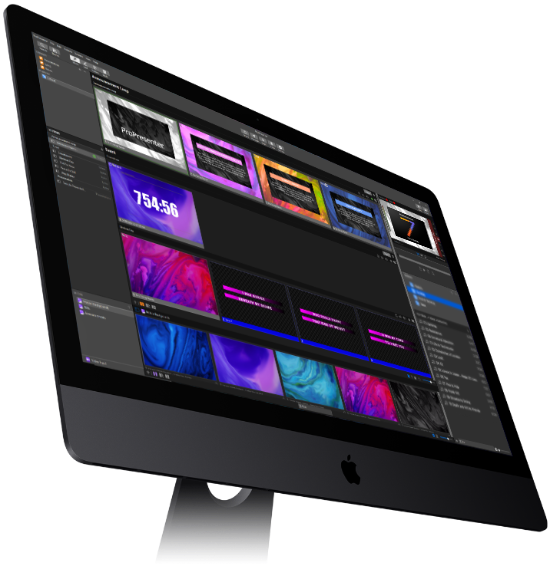
The definitive choice in live production & presentation software
Get ProPresenter
Mac & Windows
FREE
There may be no need to purchase extra seat licenses given all you can do in our Free version.
Mac / Windows
Create and Edit
Not intended to be used in front of an audience. Should you wish to try ProPresenter with an audience, you can request a 2-week trial code within the ProPresenter app
$0USD
HoW

Houses of Worship
– Church, Temple, Synagogue, etc. –
Starting at
$399USD
Business / School

Seat License
– Business, School, Government, etc. –
Starting at
$399USD
Rental
Need ProPresenter for a one time event, no problem!
Mac / Windows
Create and Edit
Present (No Watermark)
30-day rental
$99USD
Church Campus
Mac / Windows
Create and Edit
Present (No Watermark)
1-year of ProPresenter+
One Physical Campus Location (20 seats)
For Houses of Worship ONLY
$999USD
Add/Upgrade/Renew
Select this option to:
Add Seat(s) to an existing Pro7 License
Upgrade from a previous ProPresenter product
Renew ProPresenter+
* Pro4, Pro5 & Pro6 customers should use this option so any Bibles purchased will work with your Pro7 upgrade
Seat
Mac / Windows
Create and Edit
Present (No Watermark)
1-year of ProPresenter+
Seat(s)
$399USD
Add/Upgrade/Renew
Select this option to:
Add Seat(s) to an existing Pro7 License
Upgrade from a previous ProPresenter product
Renew ProPresenter+
* Pro4, Pro5, & Pro6 customers should use this option so any
Bibles purchased will work with your Pro7 upgrade
* Each Seat license can be enabled on one computer only, but can easily be moved between computers by deactivating and reactivating as needed.
ProPresenter Upgrades, Additions, or Renewals
Please enter Registration Name and Unlock Code below so we can determine what you are eligible for. Please read the instructions closely for your desired purchase.
Renew ProPresenter+ - Renewal of ProPresenter+, which provides access to support and all updates and upgrades that are released for ProPresenter. Majority of users set up Autorenew so that their ProPresenter experience is never interrupted.
Upgrade a License - Upgrade from ProPresenter 6 or upgrade a ProPresenter 7 Seat to a ProProPresenter 7 Campus license if you're a House of Worship customer. Pro7 Seat to Pro7 Campus upgrade pricing will vary depending on ProPresenter+ expiration date.
Add a License - Add one or more licenses to an existing ProPresenter 7 license. The expiration date of the first ProPresenter+ license will not change when adding another Seat. Pricing will vary depending on ProPresenter+ expiration date.
NOTE: You cannot add a license and renew a license on the same purchase. You must purchase any additional seats first, then renew all seats on a subsequent purchase.
Download ProPresenter
Download FREE 2-week trial of ProPresenter
To get your free 2-week trial of ProPresenter you need to sign up within the application. Download it below and select “Registration” under
the File menu after it launches. In the panel that appears, click on the “Start Trial” button to start the process.
Video Tutorials
Trial Registration
By checking this box, you agree to be added to our mailing list for future contact. This information is NEVER shared with any outside organization. It's used internally for product news, marketing, and updates only. This option must be checked in order to receive the two-week trial offer.
Present Like a Pro
ProPresenter is a cross-platform (Mac & Windows) presentation software and production application for live events. It seamlessly displays lyrics, slides, and media, making high-quality presentations and live productions easy. ProPresenter is an indispensable tool for churches, businesses, sporting events, conferences, trade shows, concerts, classrooms, auditoriums, studio broadcasts, & more.
ProPresenter operators control presentations on one screen, while dynamically presenting to an audience on one or more additional screens.
No separate edit and present modes
Completely non-linear flexibility
Volunteer friendly
On the fly run-of-show changes
Product

ProContent
ProContent is the ultimate subscription-based media library, designed to make it easier than ever for you to find and use media in ProPresenter. With over 50,000 assets available, ProContent is perfect for worship visuals, sermon series, and social media templates. Plus, our team is constantly creating new content to help you take your screens to the next level.
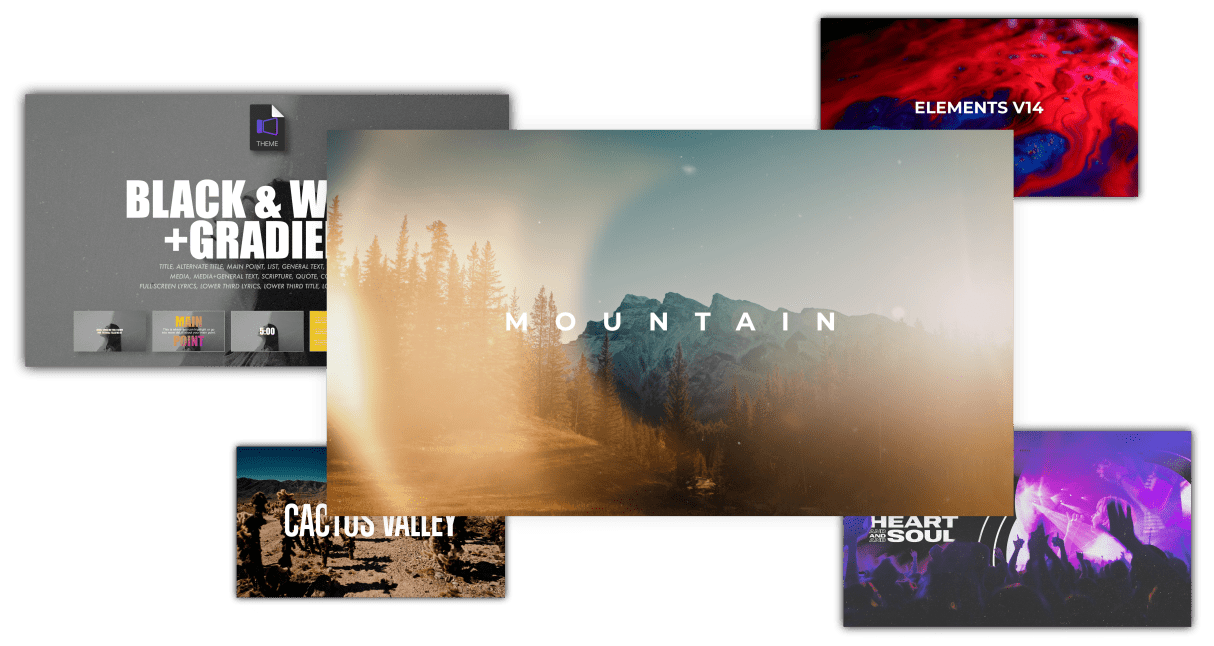
Direct integration within ProPresenter
Access ProContent’s library right from within ProPresenter. Quickly browse a selection of our curated content to find the perfect media asset to help support your worship service or sermon series.
Industry leading search
Quickly find the exact background, visual, ProTheme or any other available asset that you need with our industry leading search functionality.
50,000 media assets
Get inspired with ProContent’s massive library of media assets. From majestic mountains and sun swept deserts, to stunning waterfalls and motion graphics, our library has something for everyone.
Custom ProPresenter themes
ProThemes make any Presentation look better. Access custom built ProPresenter themes to help save you time and make your shows stand out!
Presentation Software that Empowers You to Tell Your Story. Extraordinarily.
Whatever the story you want to tell, ProPresenter has the tools to help you tell it in the most engaging way possible. With a completely revamped video engine that is equally suitable for powering presentations in a room of 100 people or 100,000, the quality and professionalism of ProPresenter’s output is unprecedented.
High quality video output
The ability to create high-quality video is becoming increasingly easy, making the use of videos in productions more prevalent than ever. The ProPresenter video engine (the same as is at the heart of PVP3) is the perfect way to present your final edit.
You can import and play videos instantly in ProPresenter. It also includes the ability to set in and out points dynamically, effect color, brightness, and volume, and crop/scale videos dynamically. Video effects empower you to leverage your video library to create limitless new looks for your pre-produced content.
In addition, these same effects and manipulations can also be used on live video sources.
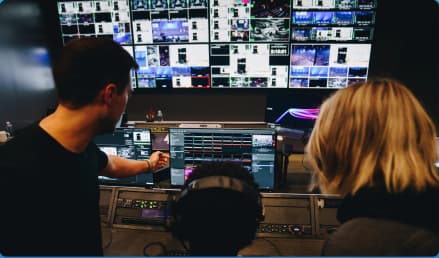

More Flexibility Than Traditional Slide Software
MULTI-LAYERED ARCHITECTURE
A multi-layered architecture allows for backgrounds, live video layers, slides, props, and masks to be controlled independently.
- High-quality transistions
- Announcements layer to show rolling announcements on one screen while rehearsing on another
- Individual slide settings for transitions and object builds
- Scale and cropping of media
- Data-driven text boxes (such as current time and countdown timers)
- Dynamically overlaid content
- Context driven visibility (clear a timer when it reaches the end)
Easy-to-Use Presentation Software with Advanced Features
ProPresenter 7 has a number of advanced features previously sold separately in Pro6 as add-on, paid for “modules” that offered additional features and capabilities beyond what your typical church needed. The typical church these days, however, has grown more sophisticated in their productions. We love seeing this and want to see more of it so Renewed Vision is now including these advanced features in Pro7 at no additional cost (a $2,593 value if all were purchased separately)!
Multi-Screen – Output to multiple displays with different combinations of content all at once, including multiple stage displays
Alpha Keyer – Output Broadcast-quality key and fill channels
Edge Blending – Project onto wide screens with multiple projectors and blend their edges to create one seemless, extra wide image
Communications – Control ProPresenter’s functions from MIDI, DMX, or broadcast video protocols (Midi is the only external communication method available on Windows currently)
SDI / NDI – Send video out over SDI (coaxial cable) or over your network (Ethernet).
Interface
Modernized Interface
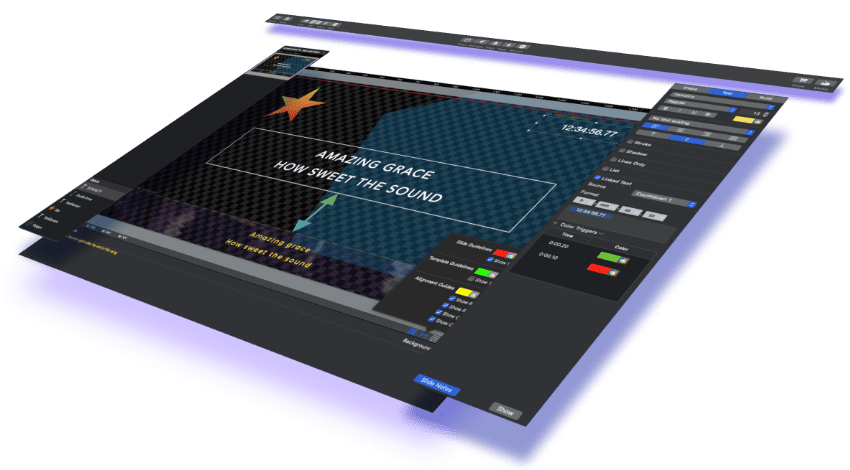
The all new ProPresenter 7 interface represents one of our biggest updates to the UI that’s inline with today’s production environments. It’s reorganized, streamlined, and darkened for easier viewing and operation.
Library
In your library you can access all of your presentations, songs, scriptures etc & create playlists that contain a mix of these elements.
Show
The show area of your presentation allows you to see upcoming slides and provides you with the ultimate control.
Preview
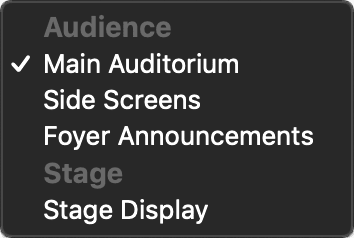
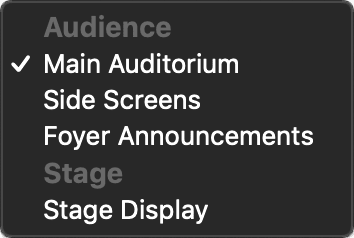
Use the Preview Window to monitor any of your screens (audience screens or stage displays), clear any layers, and control video playback.
Media Bin
Organize your media how you want with the Media Bin. You can create playlists of media and folders for your playlists.
Audio Bin
The Audio Bin allows you to create playlists of songs to control on demand or with cues.
Know everything that is happening
Select any output to view, clear any content, control any media.
Organize the way you want
Create Libraries for your presentations. Arrange playlists to fit your workflow. Organize content that makes sense to you.
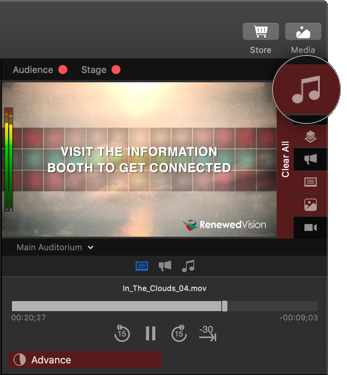
Clear each layer independently,
or clear all layers with one click
to change your view
Select transport controls
for each layer of media

Select each output to change your view
Select transport controls for each layer of media

Organize the way you want
Create Libraries for your presentations. Arrange playlists to fit your workflow. Organize content that makes sense to you.
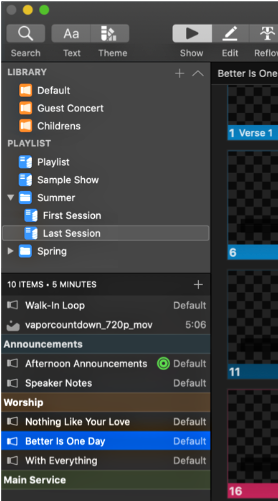
Create libraries to organize
your presentations
Editor
There’s a new Editor in town
ProPresenter 7 has an all new editor with many more tools to make your presentations pop. It may look rather similar, which is by design for ease-of-use, but you’ll see the differences and feel the power in no time.
Slide Notes
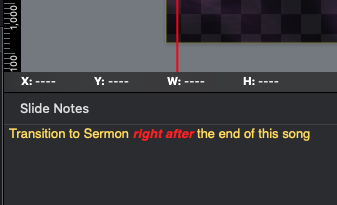
Slide notes have been redesigned and moved to a better, more natural location at the bottom of the screen and they can be formatted now too.
Shapes and Gradients
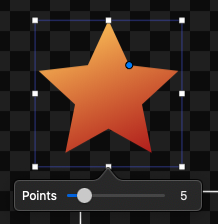
A whole new set of shapes and ability to manipulate them is now available. So now you can let your inner star come out and you can even fill it with a gradient of colors.
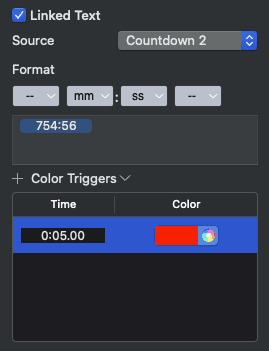
Color Triggers
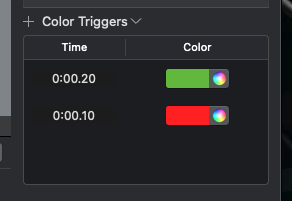
Easily define what the color of the text in a particular text box needs to be at different countdown time intervals.
Dynamic Text Scaling
As illustrated above, text is dynamically scaled whether you’re changing the size of the text box or adding more text into a fix size text box.
Linked Text Boxes
Link one text box to another so you can have two boxes with the same exact content, but formatted differently for other outputs.
Guides and Rulers
Pro7 offers more guides now to help you get things just right much faster. The enhanced rulers and coordinates help even more in achieving zen.
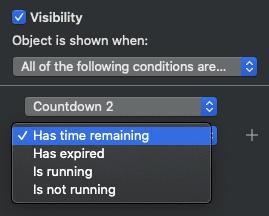
Visibility Links
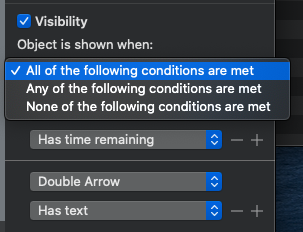
Dynamically set the conditions of when an object is displayed based on the specific criteria that you choose.
All Caps and Line Fill for Windows
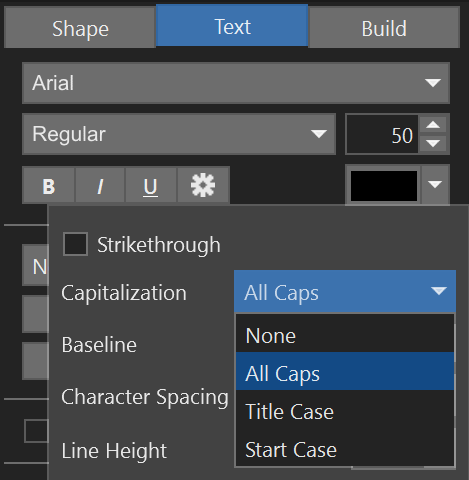
Now Windows has all the features that Mac does, including Capitalization offer.
Data-driven text boxes
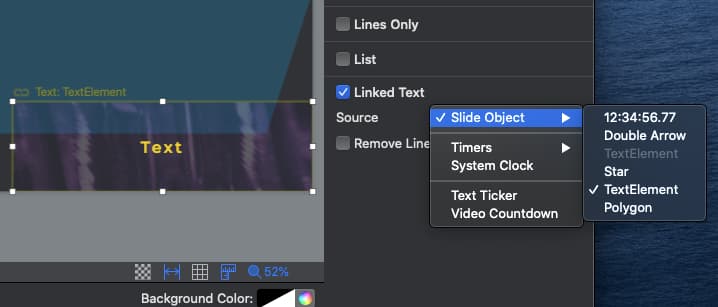
Use Linked Text to link any slide object or timer to a text box on a slide. This allows you to create visible countdowns or to have duplicated text formatted in different ways on one slide.
Free Forever
With ProPresenter, editing your presentation and exporting edited presentations to other devices is free, forever. No license, registration, or payment info required. Start editing your presentations today by downloading ProPresenter for free.
Powerful Stage Display
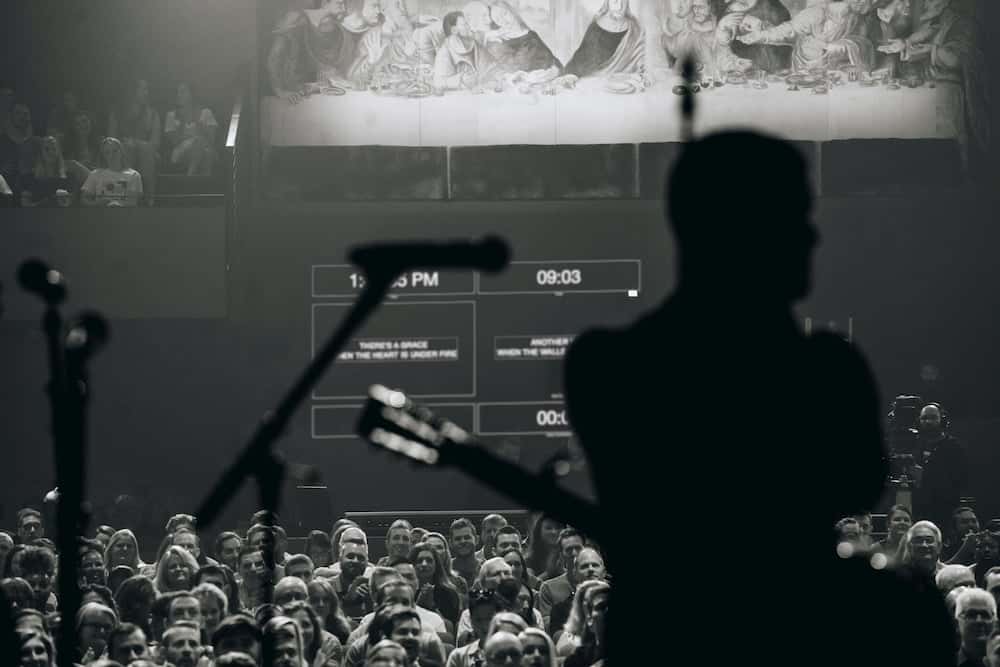
The Stage Display in ProPresenter is in a class of it’s own. Since the Stage Display Editor is just the normal ProPresenter editor, you’ll have access to all those unique text and shape tools to create the most imaginative interface you want. With this creativity at your fingertips, your stage talent can rely on quality timers, accurate text, and even notes.
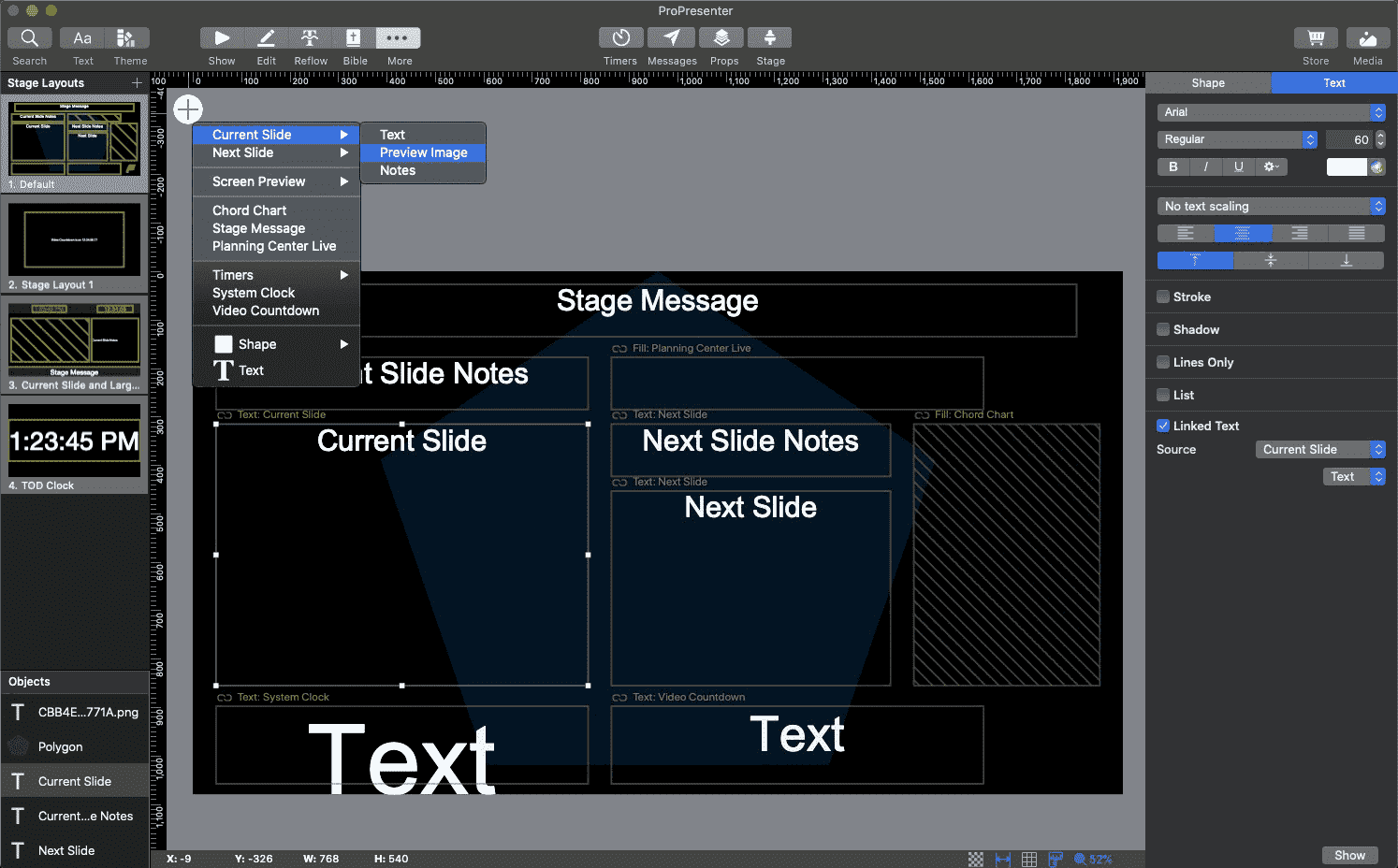
We didn’t stop there. You can also now output stage display through SDI or NDI as well as have more than one stage display. Want a lyrics display AND a separate display just for clocks/timers? No problem, Pro7 can do that!
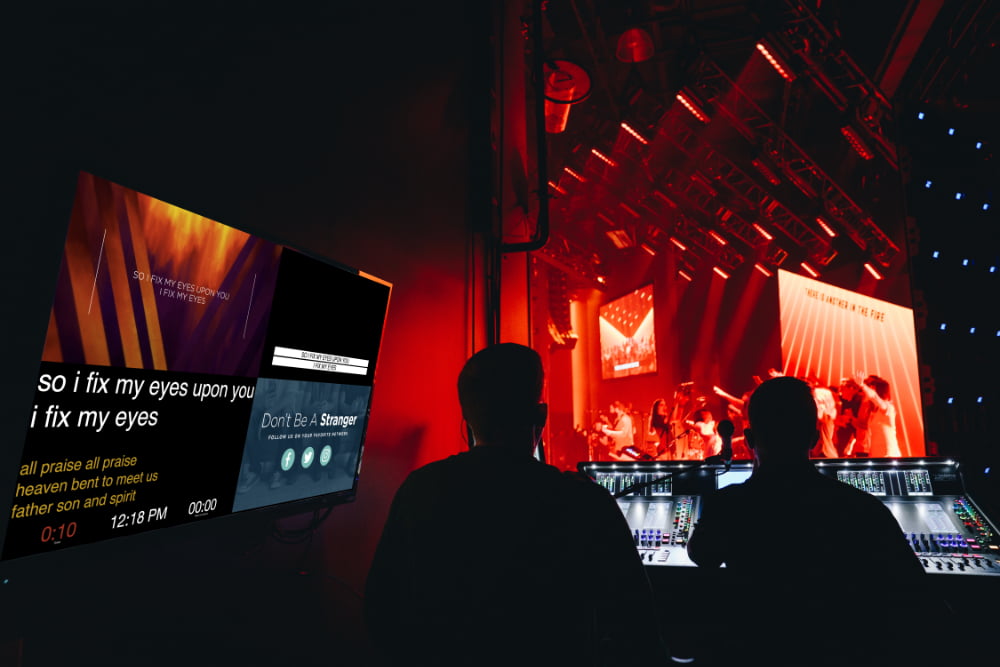
Wait, there’s still more. Want to see ALL your multiple outputs in one view? We did too. Now you can set up your own multi-viewer showing all display outputs with the all new ProPresenter 7 Stage Display.
Announcements
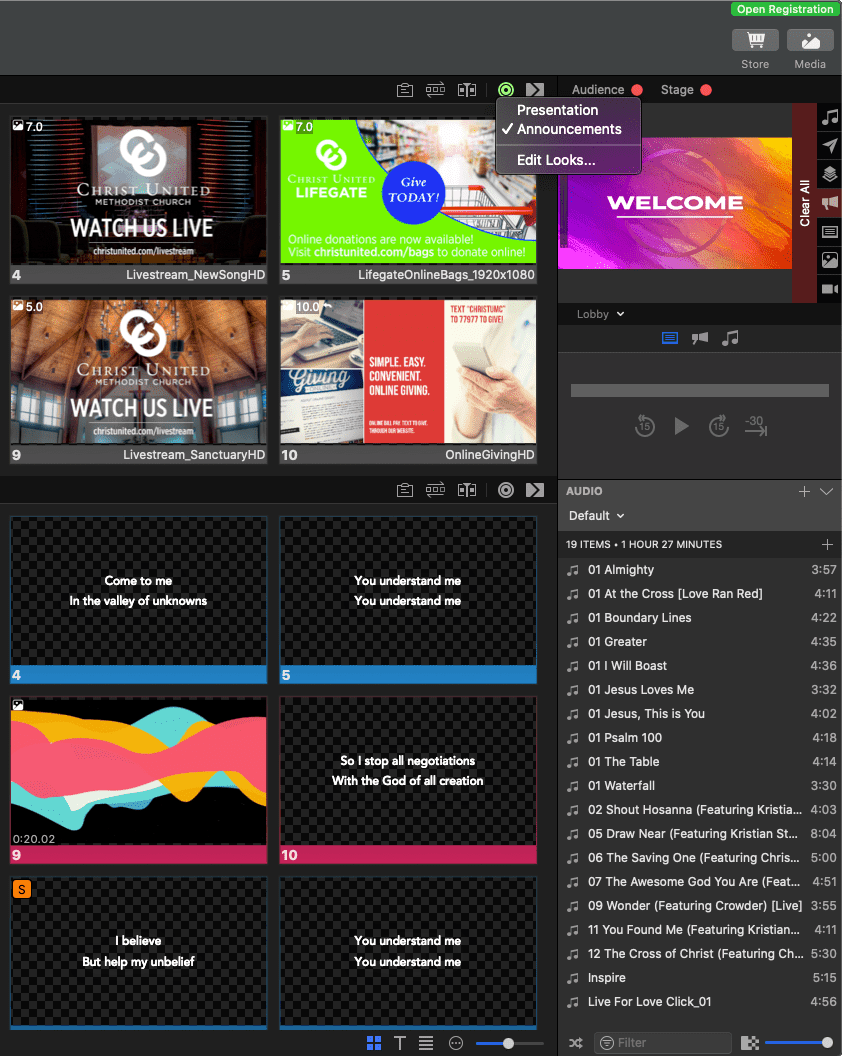
All new to ProPresenter 7 is the Announcements Layer. This new functionality adds an additional layer to our output stack so Pro can display two different presentations at the same time on different outputs. This allows you to run your main service as you would normally, but also have another presentation running to your lobby feeds, all from one computer.
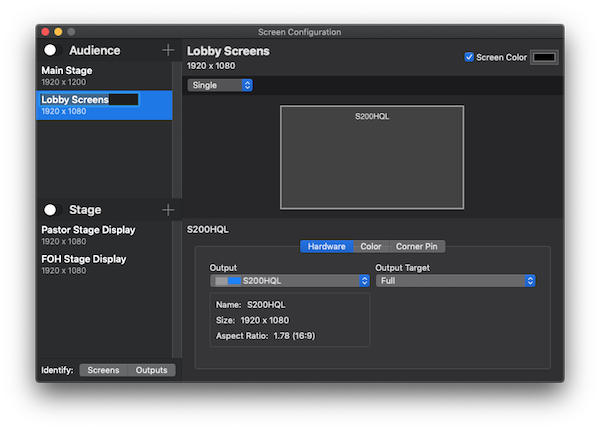
Configuration
The Screen Configuration Panel is where you can add an additional output screen that will designated for announcement presentations. Output screens can be given custom names for easier identification.
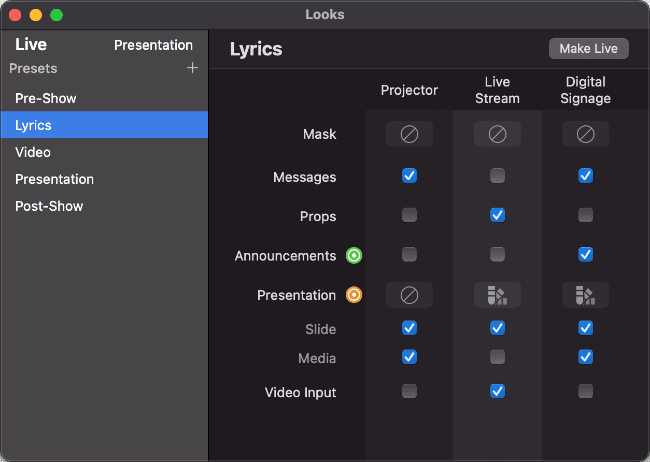
In the Looks Panel, you choose what is shown on each screen. Here you can turn off the Announcements layer for the main display so it will only show on the screen intended for announcements.
ProPresenter SDI / NDI, Standard
Serial Digital Interface
SDI is a professional broadcast quality video interface — you can read more here. It’s a standard that most any broadcast switcher or other equipment will take for sending/receiving HD or 4k video.
The SDI Output option converts the output of ProPresenter to a native SDI stream when used with a compatible Blackmagic Decklink Card or UltraStudio 4K product (can purchase here from Renewed Vision Store).
Network Device Interface
The NDI output encodes the output of ProPresenter and sends that video stream over Ethernet. Any device that supports NDI input (i.e. PVP, Tricaster, etc.) is then capable of receiving and decoding that video image as in input source. This makes the transmission of video much easier over inexpensive Cat5/6 cabling.
NOTE: Supports a wide variety of video formats, but requires a suitable NDI compliant hardware or software device to receive and decode that video transmission (i.e. PVP, NewTek TriCaster, Avid TC 8000, ChyronIP, etc.).
Multi-screen
Multi-screen, Built-in
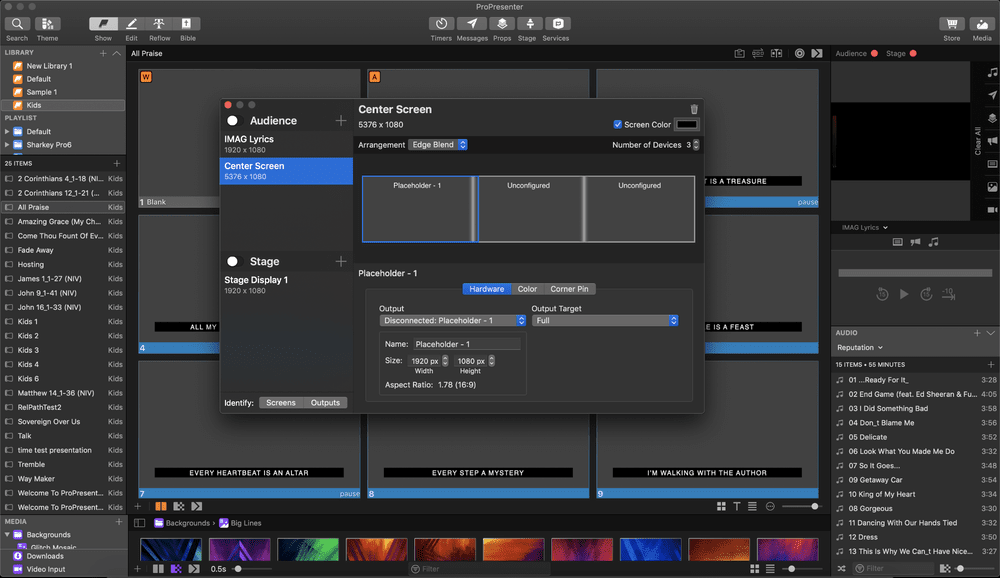
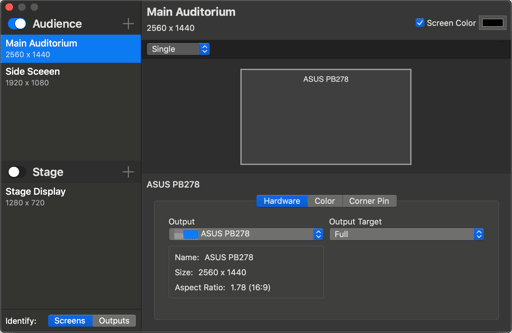
Welcome to a whole new level of native multi-screen capability in ProPresenter 7.
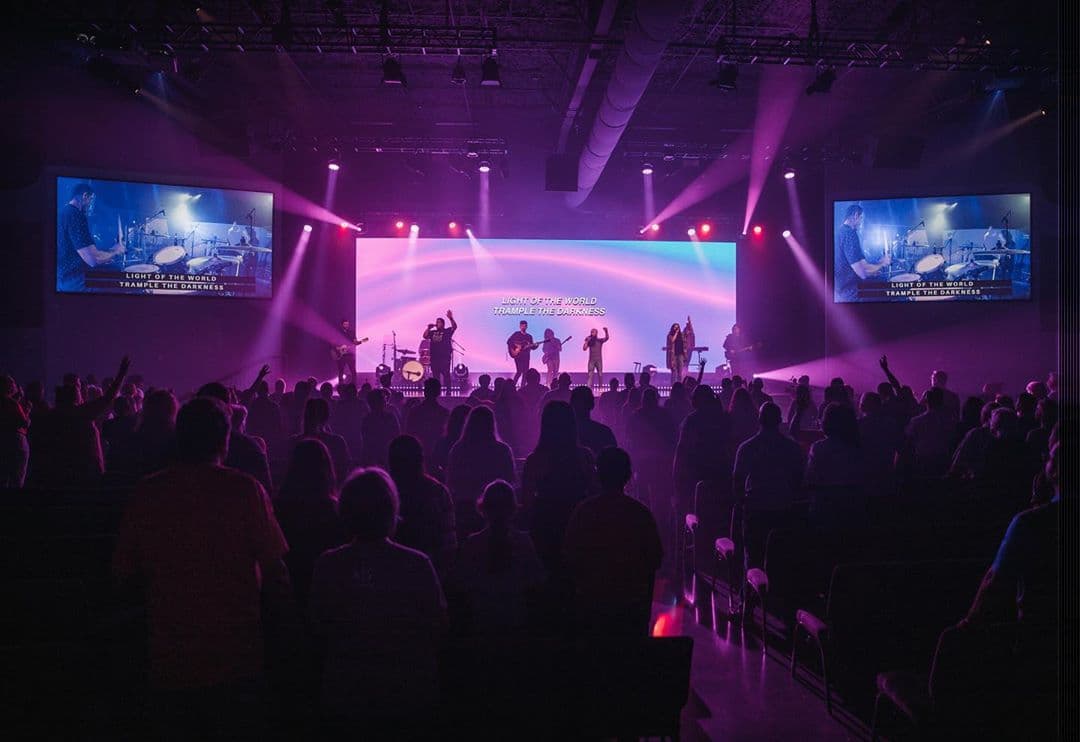
Whether it’s a 3 projector edge blend or a wide screen LED wall you see above that Pro7 has no problem handling complicated layouts. All outputs can be driven by one machine and one license of Pro7.
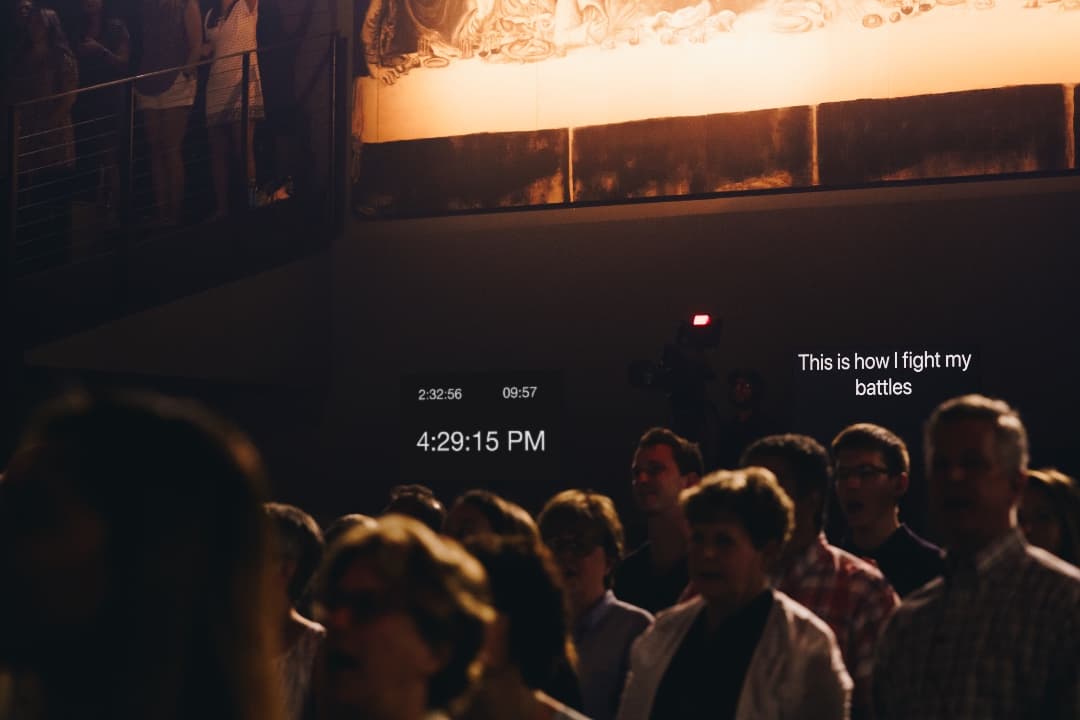
Notice the same lyrics can be seen on the center as well as on the side IMAG screens, but they’re displayed very differently by Pro7 on each. This is achieved by the new linked text boxes feature.
To the left you see varying screen control panels showing the different layouts defined for this scenario.
Below you see two stage display outputs on the back wall with different content and layout. These can also be driven by the same copy of ProPresenter and output via the onboard video card or SDI.
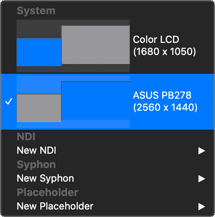
ProPresenter 7 now automatically detects outputs for easy setup and configuration. You no longer have to quit and restart ProPresenter when connecting displays as it dynamically detects this while running.
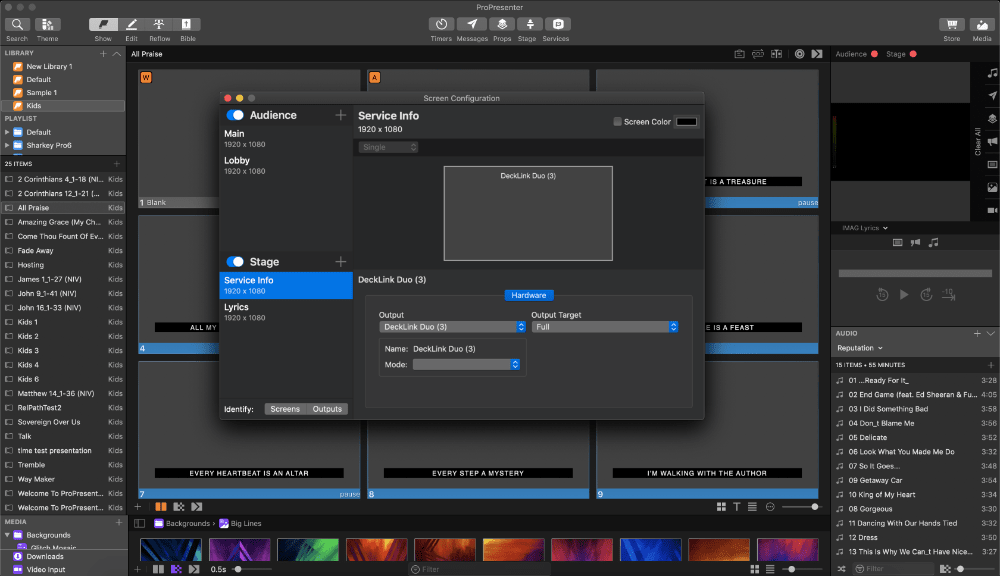
Create a 3-screen edge blend, side screens with imag,
multiple stage display outputs, each with their own layout,
and an announcements output feeding your lobby.
Automatically detects outputs
for easy setup and configuration

Timers
Keep Track of Time

VISIBILITY
Now you can programmatically set when text should be visible or hidden based on certain conditions.
LINKED TEXT BOXES
Static text boxes are so 2015. Now you can have dynamic data populate a text box, but place them inline for perfect formatting and flow so you know everything will look just right.
The color of the text can even change on-the-fly when certain parameters are set and occur during the presentation.
Ease of Use
You deserve presentation software that’s easy to use
Regardless of how powerful a tool is, its value is determined by how easy it is to access that power. ProPresenter was designed from the beginning to allow beginners to feel confident in running the software with only a few minutes of training. We make all of our training available online via free video tutorials you can access before you even purchase the software. Here are just some of the ways that we make it easy for you to create the presentations that tell your story.
Themes
It’s important that presentations have a consistent and uniform look. To this end, ProPresenter makes use of themes with which you can quickly create and transform your content to ensure everything looks right. Use one of our many built in themes or design one for your context!
Creation and Editing
Powerful importing tools including our reflow editor that allows you to edit slides as easily as editing text in a word processor. Build slides with a variety of elements, including: shapes, text, graphics, videos, gradients, live video, & more.
Working with Media
Hot folders facilitate getting content into the software quickly – as files are added to a folder, they automatically appear in ProPresenter.
Localization
ProPresenter is localized in more languages than ever so you can better navigate the app in your native language. This includes English, Spanish, Korean, Portuguese, French, German, Russian, Norwegian, Czech, and Chinese (Simplified).

Windows Rebuilt
The Windows version of ProPresenter 7 was completely rewritten and is now 64-bit native to greatly improve performance and stability. It shares many common libraries and code with the Mac, so the integration and similarity is extraordinary.
Connectivity
Stay Connected
More and more often, productions are involving their audiences in their content. ProPresenter offers some incredible tools to make this easy and effective.
MIDI
Using external software and hardware, you can send MIDI signals to ProPresenter to control your interface and outputs. With ProPresenter you can also send MIDI signals out from the software enabling the ability to control lighting software & hardware, audio automation through your DAW, digital mixers, & more.
Dynamic Web Content
If you use third party tools for asking polls or desire to show content on the web, you’ll appreciate the Web presentation tools in ProPresenter, including the ability to show web pages as objects within a slide.
Web Control
Like what you see?
Beyond the App
Beyond the app: Extended benefits of our presentation software
We Play well with others
- Integration with Renewed Vision’s ProVideoPlayer (PVP) product via NDI let’s you stream video over a local network and be imported by the PVP graphics engine
- ProPresenter offers Syphon support, which allows you to share ProPresenter’s output with other applications on the same computer dynamically
- Control or be controlled with industry standard production protocols, including video standards (AMP, VDCP, RossTalk), lighting (DMX over Artnet), and MIDI
Exporting
- ProPresenter lets you take the content you create elsewhere with exporting support for text files, JPEGs, and PNGs
Mobile Integration
- Mobile tools include an iOS/Android remote so you can control ProPresenter from anywhere in the building
- The Stage Display app let’s you have as many stage display outputs as you have mobile devices (iOS, Android, Apple TV)
Streaming
- Stream directly from within ProPresenter using industry standard RTMP directly to YouTube and FaceBook at no extra cost.
- Sign up with our partner Resi and get industrial strength Cloud based resillient streaming for a more robust and error free streaming experience with your online audience. Do this directly within ProPresenter without the need for expensive and complicated hardware encoders.
Industries

Worship Software

Live Production

Education

Government

Broadcast

Live Sports

eSports
House of Worship



ProPresenter was first built for houses of worship, offering worship-centric features like rich, dynamic visuals and automatic lyric and copyright integration plus access to 125 Bible translations. ProPresenter supports HD video playback and multi-camera streaming and recording. It’s an all-in-one solution for your visual needs, no matter how complex your facilities or presentations get.

Live Production

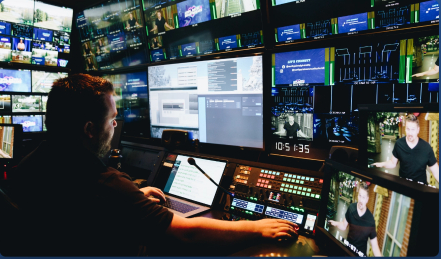
ProPresenter takes live production visuals to the next level. Enjoy an advanced professional-grade slide editor with support for 8 layers of content—including seamless video playback within your presentation. Set up multiple stage displays, lobby feeds, overflow rooms, and even a specific separate feed for online events.
Education
Increase student engagement and enjoy better stability in your presentations. Replace your office-oriented solution with one that can easily import audio and video content into presentations. With ProPresenter, your presentation will look great in the classroom, the auditorium, and on your students' devices.

Government

ProPresenter is helping government bodies improve the quality of their visual presentations at local assemblies all the way up to the meeting rooms of U.S. Congress and office of the U.S. President. Enjoy broad support for nearly any display type or video or audio format, plus an easy-to-learn interface that allows anyone on your team to produce beautiful visuals without steep learning curves.
Broadcast
Enjoy broadcasting software with industry-standard protocol controls familiar to professional broadcasters and engineers. Perform video mixing and screen control using ProVideoPlayer and output over professional video and audio formats like SDI, NDI, and Syphon. Leverage our solutions for legacy live broadcasting or in combination with live streaming over your preferred video streaming platform.
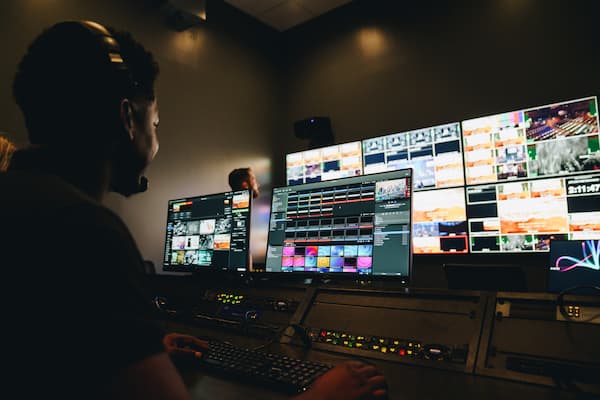
Live Sports


ProPresenter Scoreboard is the perfect solution for powering dynamic visual scoreboard content. Designed for live sporting events, the Pro suite of apps includes real-time stats, live video, lower thirds, watermarks/bugs, and more. That's why you’ll find the Pro Suite in various athletic facilities, from high schools to universities, to every Olympics in the last ten years.
Esports and Video Game Live Streaming Software
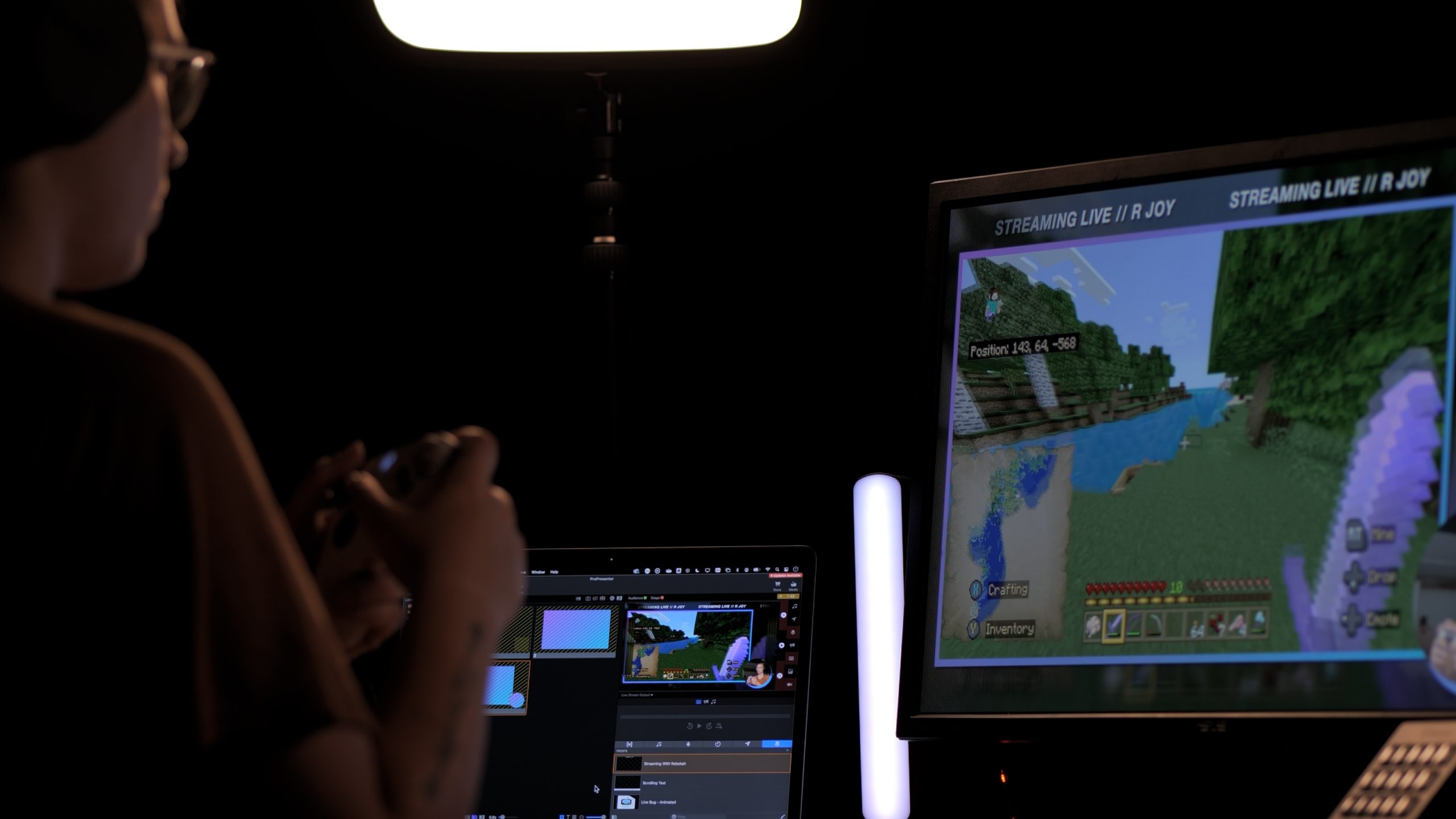
ProPresenter is designed for editing content, displaying that content across any number of screens in-person at eSports events and conferences, and for individuals streaming at home or on the go.
Presentation Software Comparison Chart
Licensing
ProPresenter+
Continuous Improvements!
The release of ProPresenter 7 is also the start of a new way of delivering value to our customers . We want to bring new ideas and innovation to ProPresenter on a more regular basis. In order to do that, the way we charge for our software needs to be adjusted. Gone are the days of a major new update every 1-4 years. We want to drop great new features as soon as we finish them vs. waiting for the next product release cycle. So we’re adopting a maintenance model we call ProPresenter+. Here’s how it works.
Every ProPresenter license is a perpetual license — it does not expire. All support and software updates (major or minor) to ProPresenter are included for a full year following the date of purchase. For example, if you purchases a license on February 1, 2022, you will be eligible for support and updates to ProPresenter through February 1, 2023. After that date, should you wish to receive additional support and updates, you will need to renew your ProPresenter+ maintenance agreement.
Annual renewals of ProPresenter+ are 60% off the price of a new license ($189 per seat; $469 per House of Worship campus license… significantly less than what a traditional software subscription would cost), and we endeavor to show you so much value (by means of added features) in the first year of ownership that you renew without hesitation. This benefits you with a predictable expense, instead of surprise updates.
Seat License
(initial purchase)- Includes 12 months of ProPresenter+ (support, software updates, and feature upgrades)
- All advanced features (formerly called modules)
ProPresenter+ Renewal
(yearly after year one)- Additional 12 months of support, software updates, and feature upgrades
- *Campus renewal is $469
Simplified Pricing
- We’ve simplified our product offerings and pricing. Every license is attached to one or more seats. Each “seat” allows the software to be installed on one computer.
- Discounted pricing is available for bulk purchases of 5 or more seats. Additional seats purchased for licenses with 5 or more seats will be discounted by 25% to $299. If you buy two licenses initially, you’ll pay $399 each. If you add 3 more to reach 5 seats, each of those will be at the discounted rate of $299 since you achieved the 5 Seat level, but no credit or refund will be given for the first two seats.
- Campus license (20-seats) are available to Houses of Worship. See our store for details.
Ongoing Support, Updates, and Feature Upgrades
- With the ProPresenter+ you get all updates while your plan is active. If you allow your plan to expire, you keep the latest version you received while in plan, but will no longer receive updates for bug fixes or new features that are introduced.
- ProPresenter+ expires on the first year anniversary of the sale of the license. Customers can renew ProPresenter+ at any time prior to expiration or within 30 days following that anniversary date. Renewals of ProPresenter+ are extended to the second anniversary date of the original purchase.
- If ProPresenter+ is not renewed in the 30 days following the first anniversary, any updates, upgrades, or technical support to the software will require the purchase of a renewal at the cost of a full license.
Stay in the spotlight
We're always highlighting new features, upgrades, and even our awesome clients. Stay up-to-date with us and join our newsletter.
Questions?
Our skilled support team is always here to help.
Shoot us a note and we'll respond within 24 hours.
Stay in the spotlight.
We're always highlighting new features, upgrades, and even our awesome clients. Stay up-to-date with us and join our newsletter.
| Acquired | Product | Price | Expires |
| 1/22/2020 | Pro7 Seat upgrade from Pro6 Single or Seat | $275 | 1/22/2021 |
| 4/6/2020 | Add Pro7 Seat (2 months and 15 days later is rounded up to a 3 month credit) |
$399 – $47.25 = $351.75 |
1/22/2021 |
ProPresenter+ prorated calculation method:
The full price of a Pro7 Seat License is $399, which includes one year of ProPresenter+ (upgrades and support). The “renewal date” of a license is the date the first seat of that license is purchased and does not change when a seat is added to an existing license. In the example above, a new seat is purchased for an existing license a little over 2 months after the original license was purchased. The annual maintenance contract costs $189 per seat ($15.75 per month). Thus a 3 month credit of $47.25 (3 x $15.75) is applied to the purchase price of the new seat.
Proration is calculated on a monthly basis and partial months are rounded up for the benefit of the customer. Thus, adding a Seat to an existing license 2 months and 15 days after the original license was purchased is the same as adding it 3 months after (receive 3 month credit off this purchase vs. only 2).
Is there anything missing in ProPresenter 7 that was in previous versions?
In short, yes. As we develop new features we have to scrutinize how people use the software and make hard decisions on cutting functionality that is rarely ever used by customers (according to analytics we track in the software). Here is a list of functionality that will not be in ProPresenter 7 on launch:
- DVD Playback (Both Mac and Windows OS have made this increasingly difficult)
- Cloud syncing (more will be said about this in the future)
- Social media (cut because of changing policies of Twitter and Facebook)
- Telestrator (may return with new technologies that make it more useful)
- Karaoke highlighted words (though the sequencing of slides on a timeline is still available)
- Live web view (web slide objects are still available)
- Media Tagging
- Presentation Categories (instead replaced with multiple library support)
- Some synchronization functions
- Tiling in multiscreen
- Extended motion text transitions